

Prefer to author by API or point an agent at the docs? The Strategy Quickstart has the equivalent JSON payloads, and Strategy DSL / Action Config are the field references.
1. Find your vaults
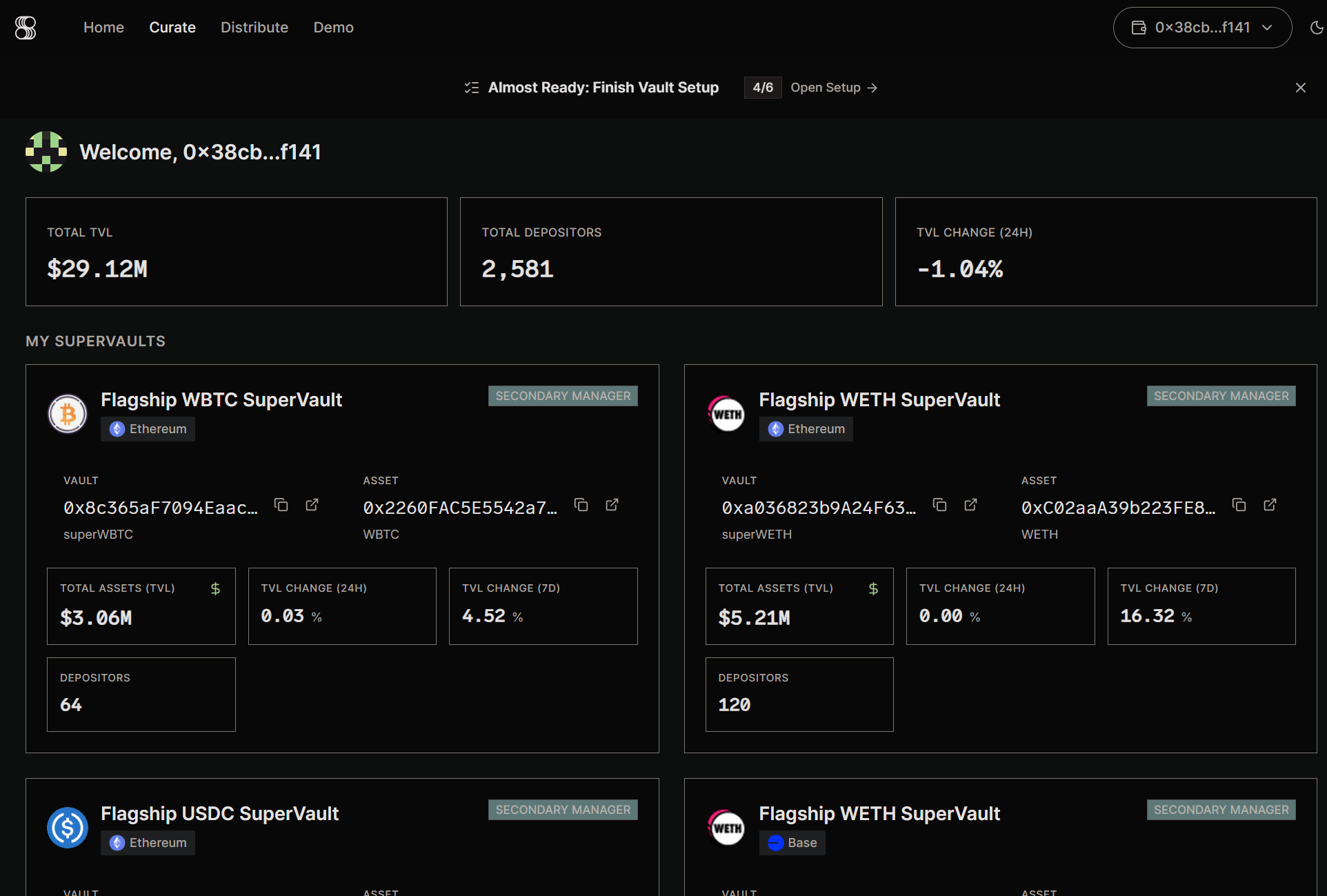
Curate in the top nav. This is the curator home — the entry point for managing SuperVaults.
You see a Welcome header, three top-line metrics (Total TVL, Total Depositors, TVL Change 24h), then a My SuperVaults grid. Each card is one vault you curate, with its chain badge, vault and asset addresses, asset symbol (e.g. superWETH), TVL, 24h/7d change, depositors, and a badge showing your role on that vault (e.g. SECONDARY MANAGER).
2. Open the Strategy Canvas
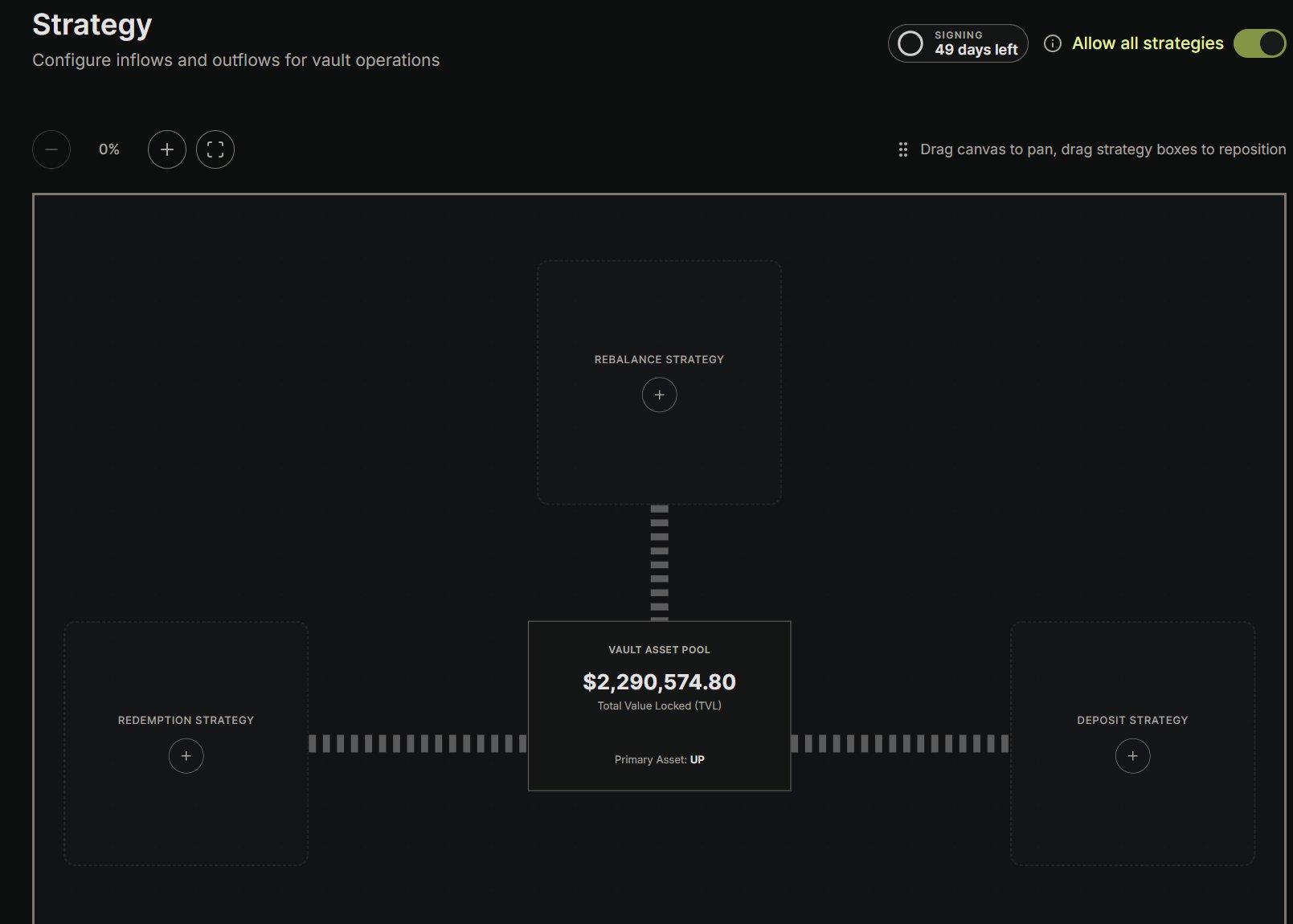
+ button on a lane adds a new strategy on that side. Above the canvas are zoom controls, a panning hint, a Signing key indicator, and an Allow all strategies master toggle.
Each strategy card shows its name, priority rank, lifecycle state (e.g. Idle), and its yield source with an allocation percentage.
The three lanes
The canvas is organized into three lanes. This is a simplified overview to orient you in the UI — see Strategy Canvas and Strategy DSL for exact semantics.- Inflow — the “Deposit” lane. Defines how assets sitting in the vault’s reserve (“Free Assets”) get deployed into underlying yield sources. A deposit into the SuperVault mints shares immediately, but the money is parked in Free Assets; the actual investment happens in a later transaction triggered by this lane’s rules.
- Outflow — the “Withdraw” lane. Defines how the Free Assets reserve is replenished over time. Redemptions are asynchronous (request → fulfill → claim), which draws down Free Assets, so this lane tops the reserve back up by pulling from yield sources.
- Rebalance. Everything else — moving capital between yield sources, swaps, and bridges. Its target is derived from the vault, so this lane has no yield-source picker.
The strategy editor
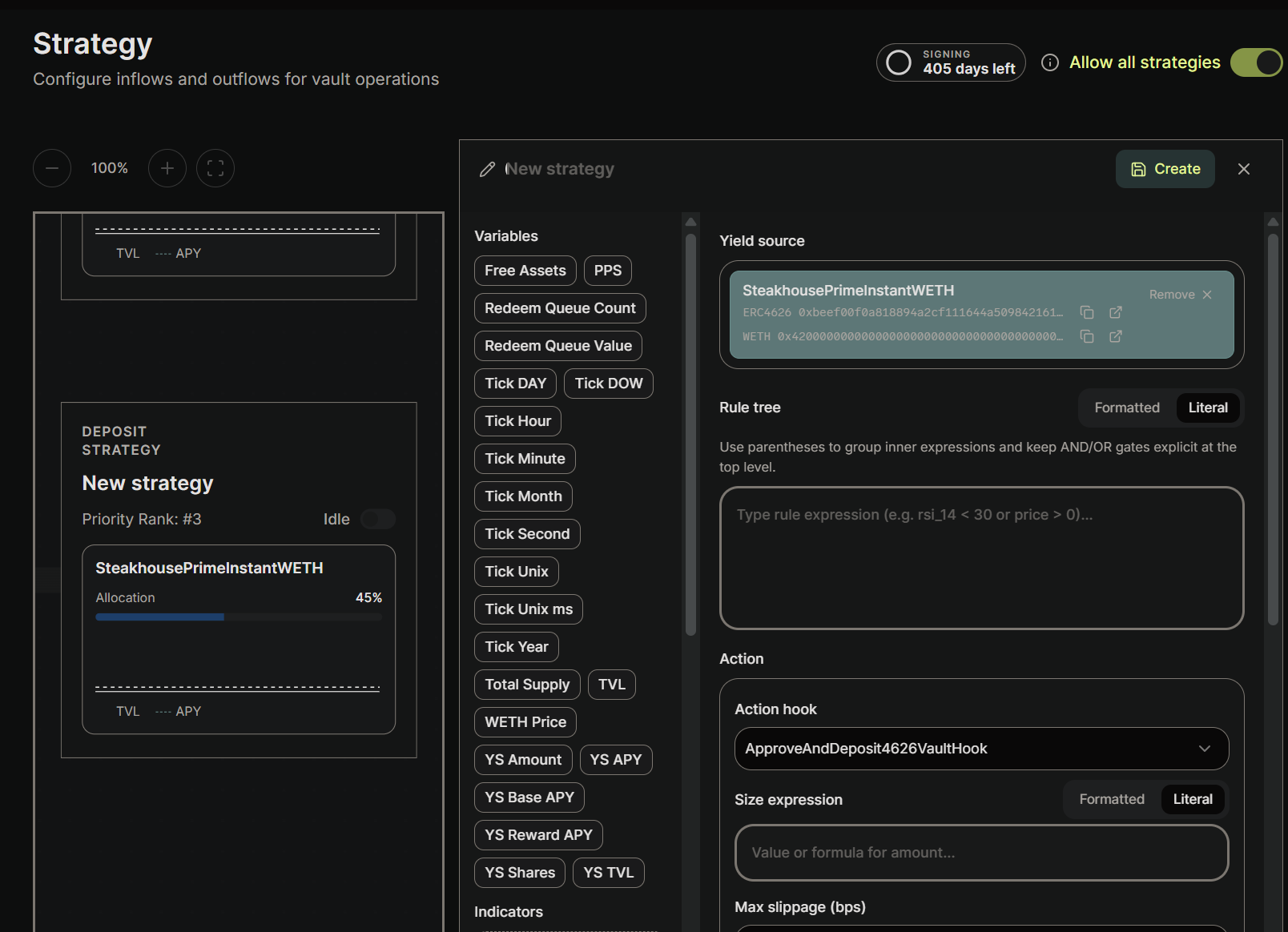
- Vault-scoped:
Free Assets,PPS,Total Supply,TVL,Redeem Queue Count,Redeem Queue Value. - Yield-source-scoped:
YS Amount,YS Shares,YS APY,YS Base APY,YS Reward APY,YS TVL. - Price & time:
WETH Price(the asset price), and theTick *family (Tick Unix,Tick Hour,Tick DOW,Tick Day,Tick Month,Tick Year, …). - Indicators: custom aliases you define (moving averages, RSI, etc.).
Build a deposit strategy
The rest of this page builds one deposit strategy end to end: when the idle reserve climbs above 5% of TVL, deploy the excess into a yield source.1. Add a deposit strategy
On the Deposit lane (right side), hover to reveal aDEPOSIT STRATEGY + placeholder and click the +. The editor opens with a draft card on the left and the empty form on the right.
2. Name it
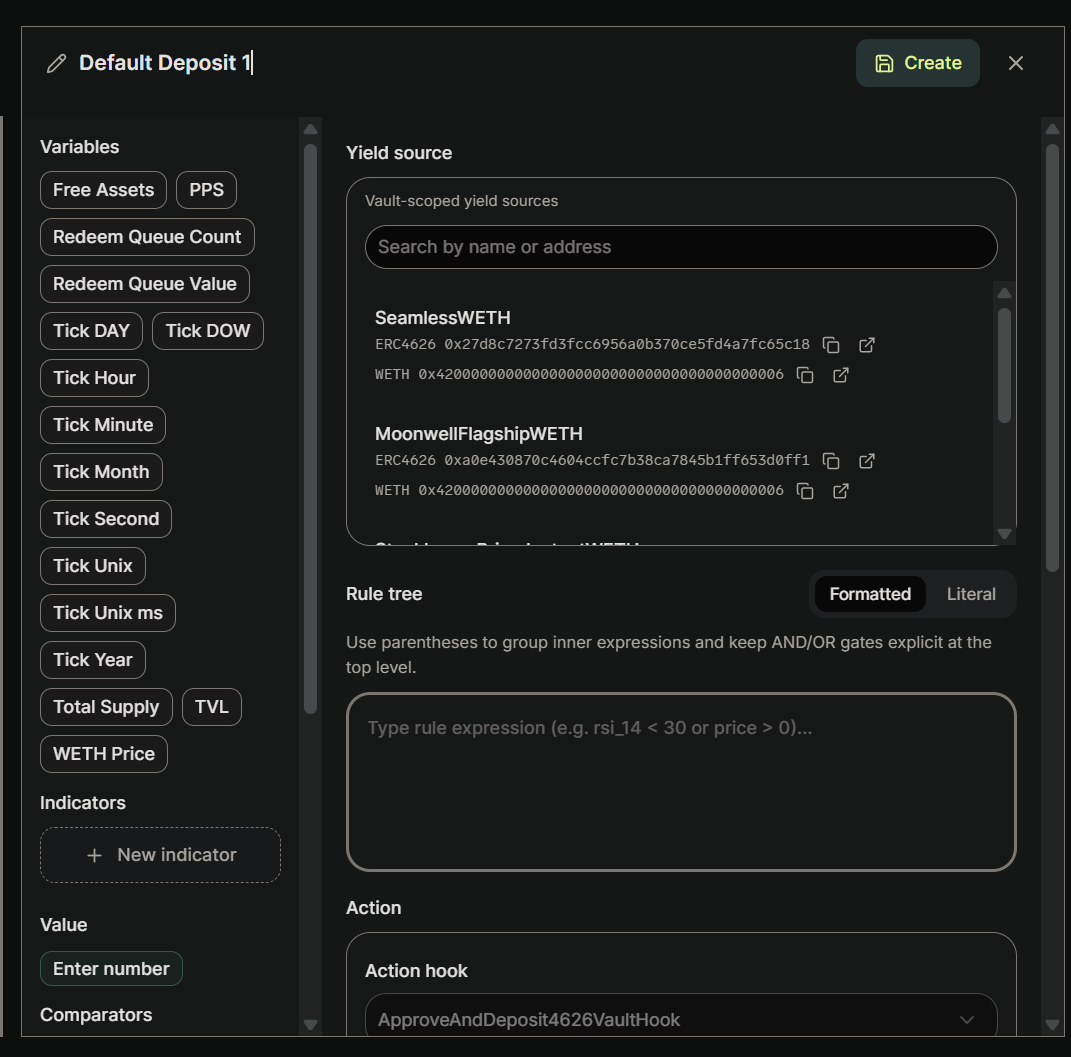
Default Deposit 1.
3. Select a yield source
In the Yield source section, search the vault’s whitelisted sources by name or address and pick one (here,SeamlessWETH). Each entry shows its type (ERC4626) and addresses.
4. Write the trigger (rule tree)
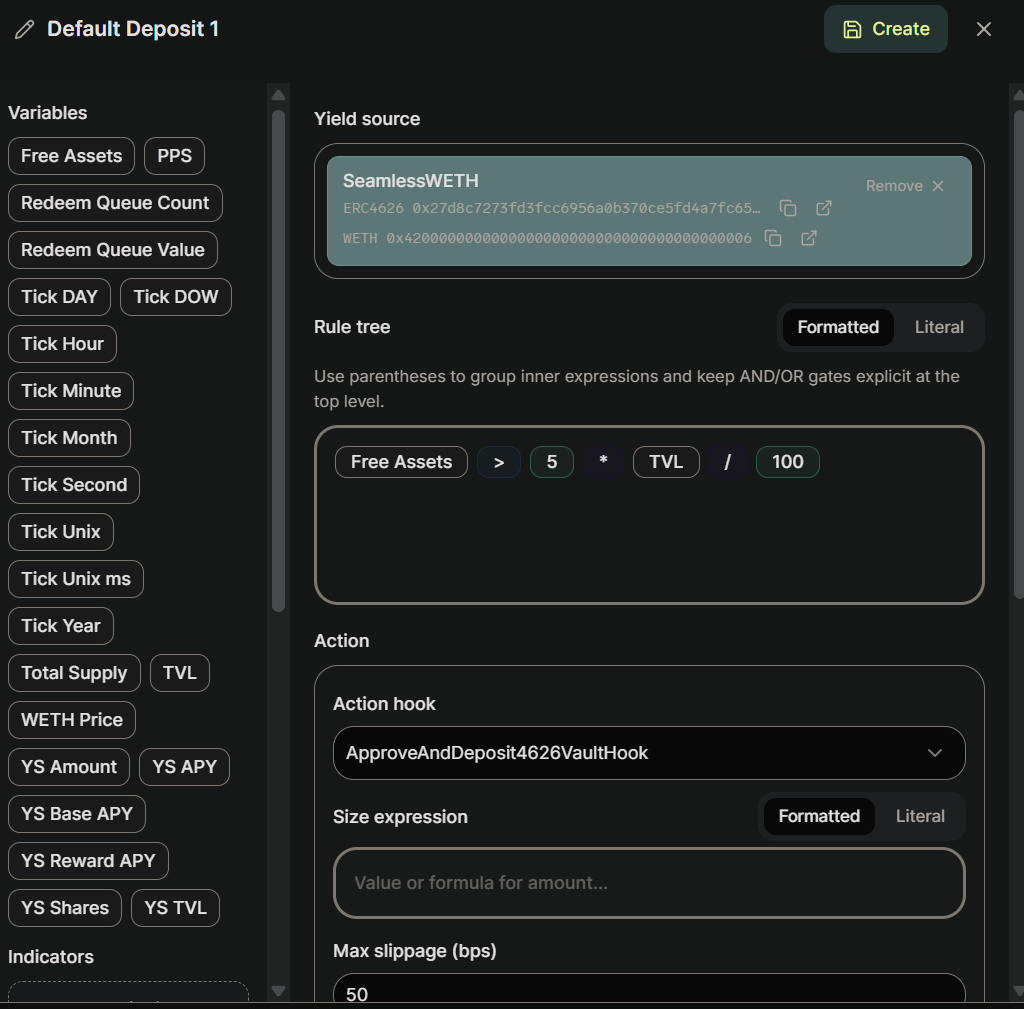
true, the strategy fires — which is why it’s also called the trigger expression.
A common pattern is “deposit when the idle reserve exceeds X% of TVL”. For a 5% threshold:
5. Choose the action hook
When the trigger passes, the strategy calls a hook. For a deposit into an ERC-4626 yield source, that hook isApproveAndDeposit4626VaultHook, which the Action hook dropdown selects by default.
6. Set the size expression
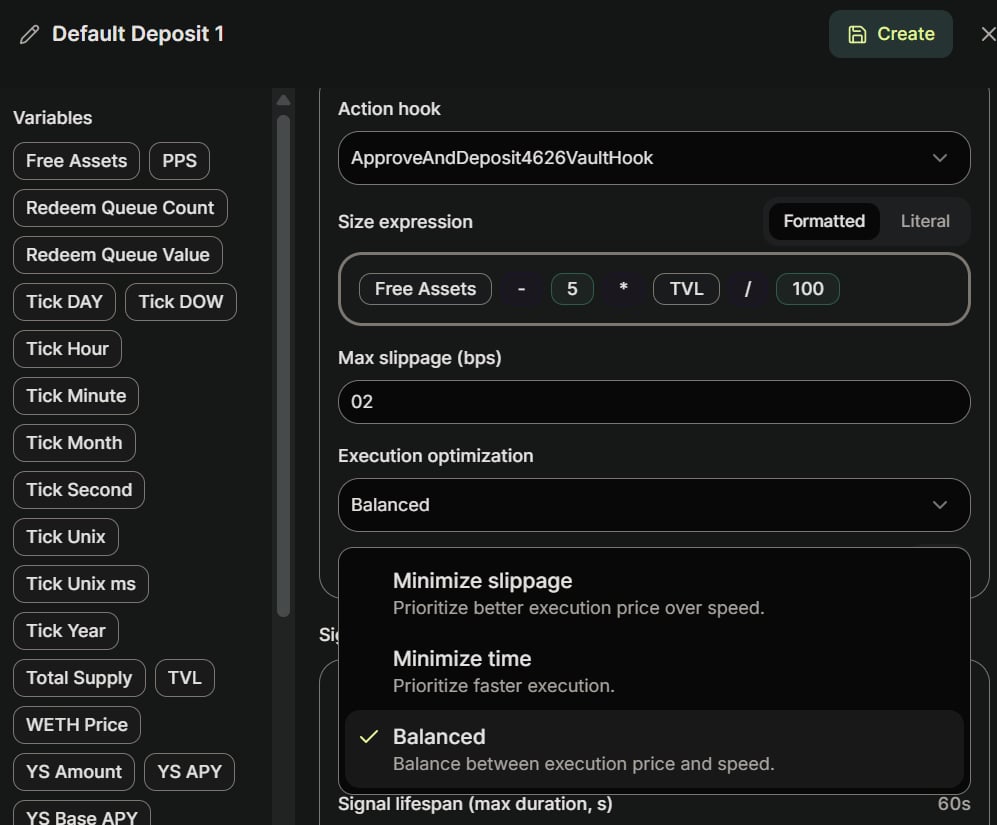
A deposit sizes in asset units (here, WETH). Withdrawals are different — they redeem shares. See Action Config for the per-action unit rules.
7. Set slippage
Slippage is in basis points. The example uses a low2 bps: depositing into a 4626 vault is effectively slippage-free, but setting it to exactly 0 can revert on tiny rounding in the source’s favor, so leave a small buffer.
8. Choose execution optimization
Pick how OMS prioritizes execution: Minimize slippage, Minimize time, or Balanced. With no real slippage on a 4626 deposit, the default Balanced is fine. Then click Create to save.Reading a saved strategy
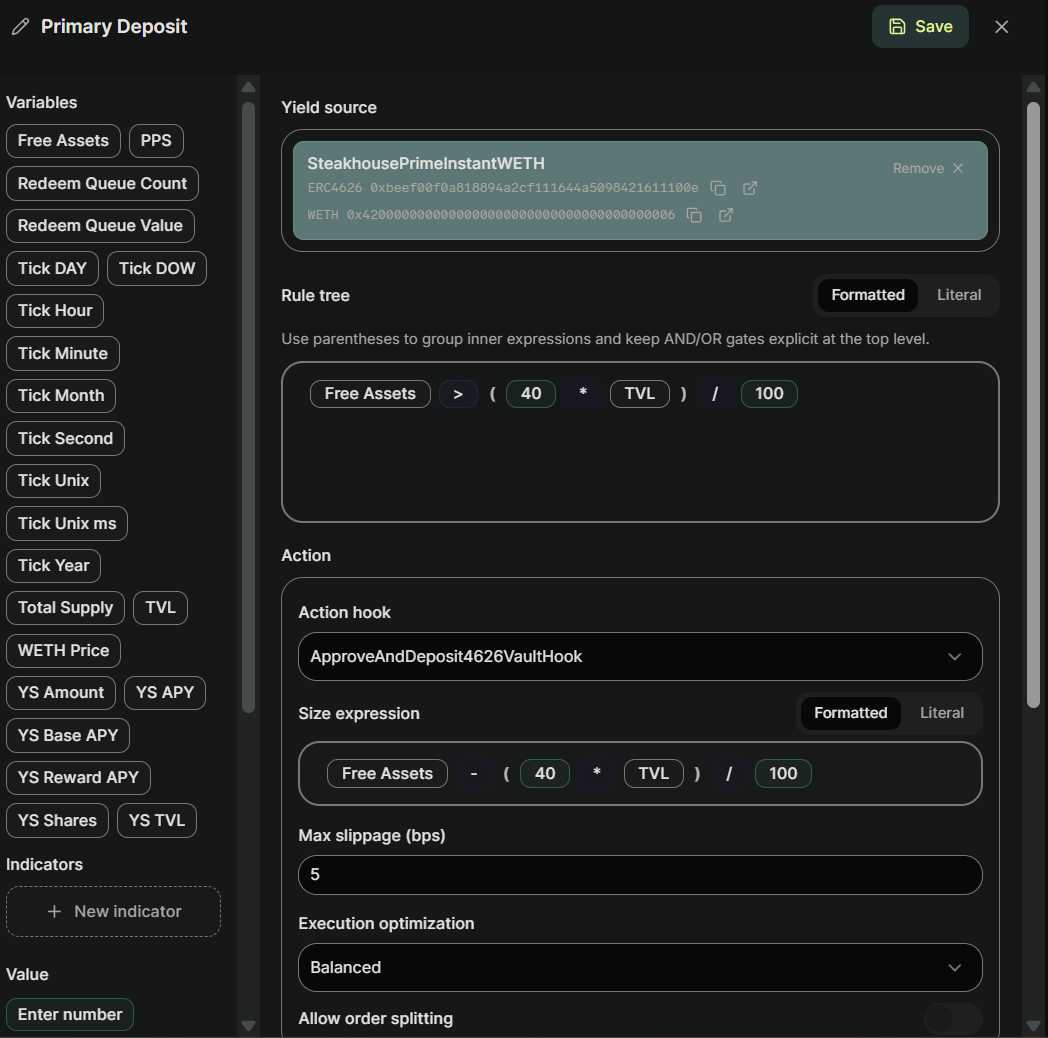
Free Assets and TVL, comparators, operators, literals, and parentheses). The example above uses a 40% target rather than 5%; the threshold is your choice, but the rule/size pattern is identical.
Next steps
- Strategy Quickstart — the same deposit/withdrawal pair as JSON, ready to POST.
- Strategy DSL — variables, operators, and validation rules.
- Action Config — hook fields and per-action size units.
- Intent History — verify the intents your strategy produces once it’s running.